
Connect the tools your team already uses, so every call comes with context. A connected CRM tells the AI Dashboard who each caller is and which deal they're on, and writes a note after every analyzed call. Connected Zoom meetings are scored alongside your Kixie calls. Connected apps like Slack and Google Workspace let the assistant act for you in the same conversation.
Where to find it: in the Kixie AI Dashboard, click Integrations near the bottom of the left sidebar to connect apps. To check and control what the AI uses, go to Settings > Connected Apps.
This article includes a short animation. Business details are blurred.
What you get with nothing connected
Your recorded Kixie calls are already in the AI Dashboard. Before you connect anything, it:
- Transcribes and stores your recorded calls. Each call page has the recording and a timestamped transcript, with key moments marked so you can jump straight to them.
- Scores each call against your Playbook, with the evidence behind every score, the moment to coach and what to do next time.
- Suggests what to do next. Next steps split into yours and theirs, a drafted follow-up email and text, and a CRM-ready call note you can copy or send.
- Answers your questions in plain words, as text, a table, a chart or a CSV download, and shows which part of your data each answer came from.
- Builds reports you can save, schedule and get by email, with every number linked to the call it came from.
- Takes action in Kixie. Call and text, build PowerDialer lists, check a number's health and block numbers.
Connecting your other tools builds on that.
What connecting adds
- Deal and contact context on every call. Call analysis knows who the person was and which deal they're on, and reports can name the company and the deal, not just the phone number.
- Call notes written for you. After each analyzed call, a short note with the outcome, what the customer said, the next steps and a link to the call page is added to the contact and their latest open deal in your CRM.
- More conversations analyzed. Synced Zoom recordings are scored and searchable along with your Kixie calls.
- Actions in your other tools. From the chat, post to Slack, or work with Gmail, Calendar, Sheets and Docs, or their Microsoft 365 equivalents.
In this article
- See everything you can connect
- Put deal context behind every call
- Let the assistant work in your other apps
- Connect a telephony provider
- Confirm the AI is using your data
- Turn CRM call notes on or off
- Quick tips
- Troubleshooting
1. See everything you can connect
Click Integrations in the left sidebar. A window opens with a card for each app, and a Telephony tab for phone providers.
Animation: Connect your apps (14 seconds, loops)
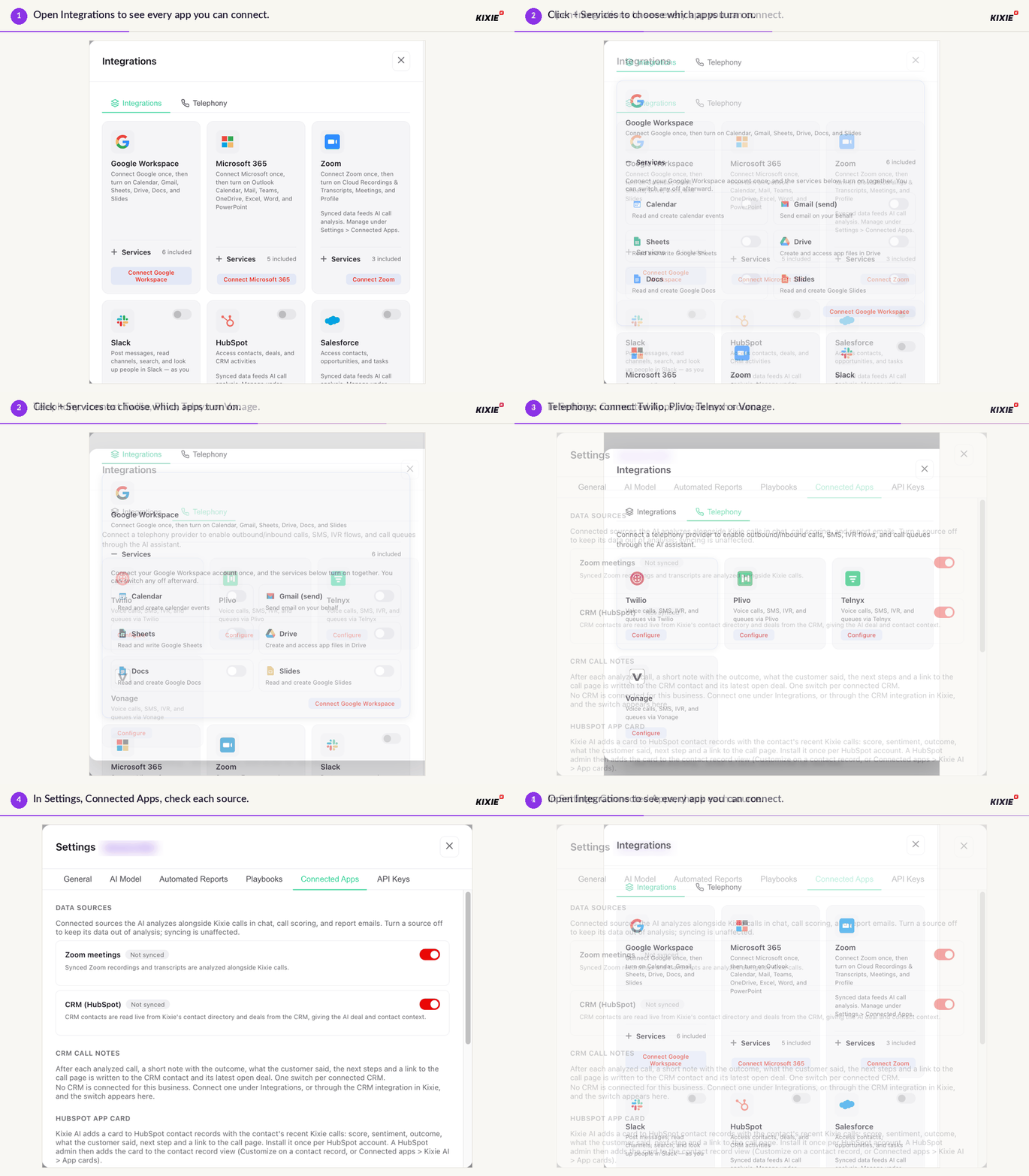
- Open Integrations to see every app you can connect.
- Click + Services to choose which apps turn on.
- Telephony: connect Twilio, Plivo, Telnyx or Vonage.
- In Settings > Connected Apps, check each source.
| Integration | What it adds |
|---|---|
| HubSpot | Contacts, deals and CRM activities. |
| Salesforce | Contacts, opportunities and tasks. |
| Zoho CRM | Contacts and deals, and logging calls, notes and tasks. |
| GoHighLevel | Contacts and opportunities, and logging calls, notes and tasks. |
| Zoom | Cloud recordings and transcripts, meetings and profile. Synced Zoom calls are analyzed alongside your Kixie calls. |
| Google Workspace | One connection for Calendar, Gmail, Sheets, Drive, Docs and Slides. |
| Microsoft 365 | One connection for Outlook Calendar and Mail, Teams, OneDrive, Excel, Word and PowerPoint. |
| Slack | Post messages, read channels, search and look up people. It acts as you, so it can only see what you can. |
| Vitally | Search accounts, view health scores and create notes and customer success tasks. |
| Telephony providers | Twilio, Plivo, Telnyx or Vonage, so the assistant can handle outbound and inbound calls, SMS, IVR flows and call queues. |
2. Put deal context behind every call
Connecting your CRM is the single most useful step you can take in the AI Dashboard.
- Click Integrations in the left sidebar.
- Find your CRM: HubSpot, Salesforce, Zoho CRM or GoHighLevel.
- Turn on the switch on its card, then sign in to your CRM and approve access.
Good to know: you need permission to authorize apps in your CRM. If you're not an admin there, ask your CRM admin to connect it. If your reps already connect Zoho CRM or GoHighLevel in Kixie, the card shows "Connected in Kixie" and how many users are connected.
3. Let the assistant work in your other apps
- Click Integrations.
- For Google Workspace, Microsoft 365 or Zoom, click the Connect button on the card, sign in and approve access. All of the app's services turn on together.
- To switch individual services off, such as Gmail or Drive, click + Services on the card and use the switches.
- For Slack, turn on the switch on the card and approve access. For Vitally, click Configure.
4. Connect a telephony provider
- Click Integrations, then the Telephony tab.
- Click Configure on Twilio, Plivo, Telnyx or Vonage and enter your account details from that provider.
5. Confirm the AI is using your data
- Go to Settings > Connected Apps.
- Under Data sources, check that each app says Analyzing. If it says Not synced, it isn't connected yet.
- Ask the chat something only that app can answer. For a CRM, try "What deals are open at the company I spoke to yesterday?"
Good to know: turning a data source off keeps its data out of chat, call scoring and report emails. It keeps syncing in the background.
6. Turn CRM call notes on or off
- Go to Settings > Connected Apps.
- Under CRM call notes, use the switch for each connected CRM, such as Write call notes to HubSpot.
Call notes are on as soon as a CRM is connected. When a switch says Writing notes, a note is added after every analyzed call. Turn the switch off to stop notes for that CRM.
7. Quick tips
- Connect your CRM first. It adds deal context to every call, report and note.
- Connect Zoom if your team also sells on video. Those meetings are scored against the same Playbook.
- Connect Slack and ask the assistant to post this week's leaderboard to your team channel.
8. Troubleshooting
Connecting stops at the sign-in or approval step. Your account in that app doesn't have permission to authorize apps. Ask the app's admin to connect it.
The app still says Not synced. Make sure you finished the approval step in the app. If it still says Not synced, contact support@kixie.com.
There's no call notes switch. No CRM is connected for your business yet. Connect one under Integrations or through the CRM integration in Kixie, and the switch appears.
Notes aren't appearing in my CRM. Check that the switch under CRM call notes says Writing notes. Notes are only written for analyzed calls.
Slack can't find a channel. Slack acts as you, so it only sees channels you can see. Join the channel first.
Get started
Open Integrations in the Kixie AI Dashboard and connect your CRM. Then check that Settings > Connected Apps says Analyzing. If you want help, contact your Kixie account team or support@kixie.com.