
Move from what happened on your calls to what to do next. The Kixie AI Dashboard puts your calls, texts and PowerDialer activity in one place, scores every analyzed conversation against your Playbook and answers questions about your business in plain words.
Where to find it: go to ai.kixie.com and sign in with your Kixie account. You don't need a separate password. All Kixie plans include the AI Dashboard. Managers and admins see the whole team. Reps see their own calls.
Watch the 90-second tour
Start here
- See your team at a glance. Open Reports for your Business snapshot. How to read Business snapshot
- Connect your CRM. It adds deal context to every call and writes a note after each one. How to connect integrations
- Teach the AI how you sell. Build a Playbook by answering a few questions, so every score fits your team. How to build a Playbook
- Coach the calls that need it. Filter Calls to needs coaching and jump to the moment. How to review calls
- Get your numbers in your inbox. Build a dashboard and have it emailed every Monday. How to build reports and dashboards
In this article
Navigation
Left sidebar
|
Top bar
Shows the indexing status on the left, then Auto Sync (leave it on; it keeps your data up to date), your email, your role and your business.
The chat box
The chat box stays at the bottom of every screen, so you can look at a page and then ask about it without leaving.
The home page
Coaching cards
The top of the home page picks up to three people to talk to this week, based on your analyzed calls: the rep setting the pace, the one climbing fastest and the one who needs you most. Each card shows a Playbook score out of 100, how many calls it's based on, a plain-English reason, a four-week trend and three measures: talk ratio, questions asked and longest monologue.
Below the coaching cards
- Key stats. Calls, connected, connect rate, talk time, active reps.
- Call trend. Calls against connections, day by day.
- Sentiment. How calls are trending, split into positive, neutral and negative.
- Leaderboard. Rep, calls, connected, rate.
- PowerDialer lists. Lifetime dialed, answer rate and connect rate per list, with "Analyze all lists".
Quick prompts (popular reports and actions)
Nine one-click starters in three groups. Reporting and Analytics: Team Performance, Call Analysis, Analyze PowerDialer Lists. Account Tools: Block Numbers, View Blocked, Support Docs. Quick Actions: New PowerDialer List, My Lists, Bulk Add SMS Templates.
Asking the assistant a question
Type your question the way you'd ask a colleague. For better answers, name the time period and the people: "last week" beats "recently," and one rep's name beats "the team" when you mean one person. If an answer looks wrong, ask it to show the calls and data it used.
Common things people ask:
- Who didn't hit 50 calls yesterday?
- What objections came up on this week's calls?
- Which agents are under 30 calls today?
- Break down dispositions by PowerDialer list for yesterday.
- What is the trend in connection rates since August 1st?
Worth knowing:
- It shows its work. A label appears naming the tool it used, so you can see which part of your data an answer came from.
- Answers take the shape of the question: text, a table, a chart or a CSV download.
- It acts, not just answers. Post to Slack, log a note to your CRM or pull a report in the same conversation.
- Voice works. Use the microphone, or turn on the "Hello Kixie" wake word in Settings > General.
Building a report
Everything is under Reports in the left sidebar:
- Business snapshot. Your most important reports on one page, filtered by team and date range.
- Dashboards. A dashboard is a collection of reports on one page. You'll find them on the Boards tab. Use the ready-made dashboards, or build your own by describing each report in plain words. Then have the dashboard emailed to you daily, weekly or monthly, or sent to another system by webhook.
- Scheduled reports. Describe the report you want, and it's written from your analyzed calls, or use the structured builder for a fixed-format recap with coaching sections. Save it to run again, or on a schedule.
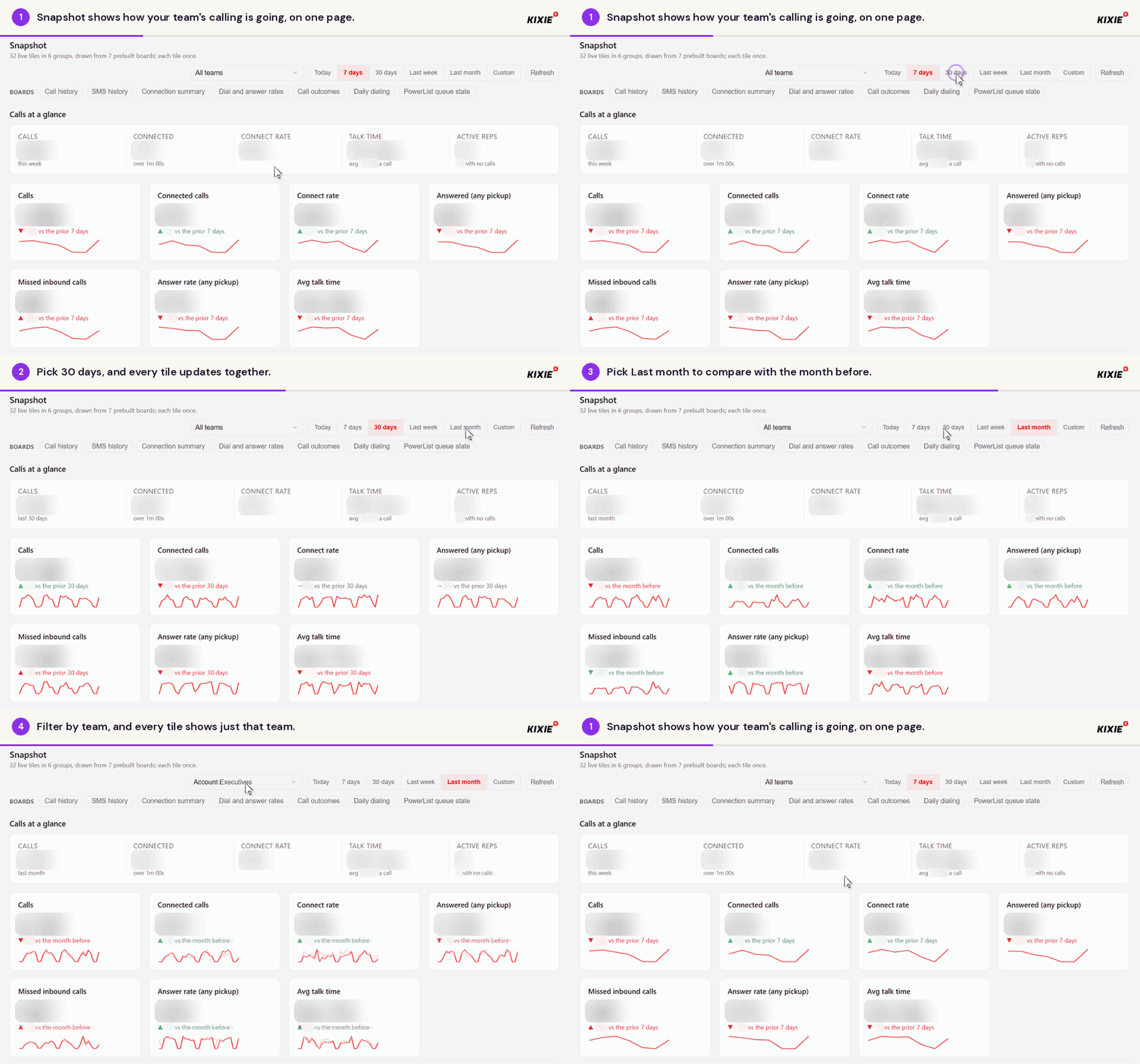
Business snapshot: pick a date range or a team, and every report updates together.
Learn more: Kixie AI Dashboard | How to read Business snapshot and use ready-made dashboards, Kixie AI Dashboard | How to build reports and dashboards and Kixie AI Dashboard | How to build a custom report with the structured report builder.
Daily Call Reports
The Daily Call Report is a scheduled report emailed every morning, built from the previous day's calls. It uses the same analyzed call data as the rest of the AI Dashboard. Every number in it links back to the call it came from, so you can click through and hear the moment for yourself.
Accessing your calls, transcripts and analysis
Calls page
Your own calls, or your team's calls, depending on your role.
Two tabs: List and Search.
Four summary numbers sit above the list: analyzed calls, average Playbook score out of 100, how many need coaching and how many ended with no next step.
Filters: window, rep, direction, flags, score, how the call ended and outcome.
Columns: when, contact, rep, outcome, what the customer said, sentiment, flags, score. Sentiment shows how the mood changed during the call, not a single verdict. Flags explain why a call is worth your attention, such as "needs coaching," "best moment" or "objection."
Calls appear 30 to 45 minutes after they end. Calls too short to analyze are marked that way instead of being scored.
Individual call pages (with call coaching and next steps)
Across the top of a call page: the Playbook score out of 100, which Playbook scored it, when, length, direction, rep, outcome and sentiment. Alongside it, whether a CRM note has been sent and a four-week trend for that rep.
- Recording, with key moments marked on the timeline so you can jump straight to them.
- Moments. The moment to coach, what happened and what to do next time, written as an instruction rather than an observation.
- Scorecard. Each criterion with its score, the team average for comparison and the evidence from the call behind it.
- Transcript, timestamped and split by speaker.
- Key moments, listed with timestamps.
- Ask about this call. A question box that opens a chat with that call already loaded.
- Note for your CRM. A ready-written note: outcome, what they said, objections, sentiment and next steps split into yours and theirs. You can copy it, send it from Kixie or send it to the contact.
Searching your calls
Every call is searchable by meaning, not only exact words, and you can filter by:
- Topic
- Company or contact
- Sentiment
- Minimum and maximum call length
- Phone number
- Direction
Save a search to reuse it, and export results to CSV.
Learn more: Kixie AI Dashboard | How to review calls, scores and Playbooks.
AI agents (beta, not available on all accounts)
AI Agents has its own section in the sidebar, with an entry for each agent, a New agent button and a Stop all AI Agents button.
Results shows a date range and filters, then counts: triggered, dialed, reached a human, scheduled, in flight (still in progress) and inbound calls. Below them is a breakdown of how follow-ups ended (scheduled, transferred to rep, removed, callback requested, ended with no outcome, opted out), then a table with a row for each contact.
A Trigger log sits next to Results.
Metrics shows how the agent is performing.
Configuration holds the agent's settings, its number, its webhook and the consent attestation, which shows who attested and when.
Learn more: Kixie AI Dashboard | How to set up and manage AI agents.
Integrations
Currently available integrations:
| Integration | What it adds |
|---|---|
| Google Workspace | One connection for Calendar, Gmail, Sheets, Drive, Docs and Slides. |
| Microsoft 365 | One connection for Outlook Calendar and Mail, Teams, OneDrive, Excel, Word and PowerPoint. |
| Zoom | Cloud recordings and transcripts, meetings and profile. Synced Zoom calls are analyzed alongside your Kixie calls. |
| HubSpot | Contacts, deals and CRM activities. |
| Salesforce | Contacts, opportunities and tasks. |
| Zoho CRM | Contacts and deals, and logging calls, notes and tasks. |
| GoHighLevel | Contacts and opportunities, and logging calls, notes and tasks. |
| Slack | Post messages, read channels, search and look up people. It acts as you, so it can only see what you can. |
| Vitally | Search accounts, view health scores and create notes and customer success tasks. |
| Telephony providers | Connect Twilio, Plivo, Telnyx or Vonage so the assistant can handle outbound and inbound calls, SMS, IVR flows and call queues. |
Connecting your CRM
Connecting your CRM is the most useful step you can take. With it connected, the AI Dashboard knows who each caller is and which deal they're on: call analysis includes deal and contact details, the assistant can log a note back from inside a conversation, and reports can name the company and the deal, not just the phone number.
- Click Integrations near the bottom of the sidebar.
- Find your CRM.
- Turn on the switch on its card and sign in when prompted. You need permission to authorize apps in that CRM. If you're not an admin there, ask your CRM admin to do this step.
- Go to Settings > Connected Apps and check that your CRM says Analyzing rather than Not synced.
- Ask something only the CRM can answer, such as which deals are open at the company you spoke to yesterday. If you get an answer, you're connected.
Learn more: Kixie AI Dashboard | How to connect integrations.
Playbooks
A Playbook tells the assistant about your business: your process, your terminology and how you want coaching and reports to sound. Every business starts with the built-in Kixie Default Playbook. From there you can:
- Build your own four ways: answer a short set of questions in the wizard, upload a document or script you already have, start from scratch in the editor or customize the default.
- Activate one so every chat and report in your business starts from the same context. One Playbook is active at a time.
- Assign a Playbook to specific teams, so teams that sell differently are coached and scored the way they actually work.
- Let reports use Playbooks automatically. Pick one for a single chat, or let the assistant use the team's Playbook and fall back to the active one.
Playbooks work alongside connected data like synced Zoom recordings and CRM records, which the assistant analyzes together with your Kixie calls.
Learn more: Kixie AI Dashboard | How to review calls, scores and Playbooks.
Quick tips
- Start the week on Snapshot with Last week selected to see how the team finished.
- Ask the chat before you build anything. "Who didn't hit 50 calls yesterday?" is faster than building a dashboard.
- Talk to the people on your home page cards this week. They're picked from your analyzed calls.
- Give each manager their own dashboard for their team, and have it emailed to them on Monday morning.
Get started
Sign in at ai.kixie.com, connect your CRM and open Reports. If you want help setting it up, contact your Kixie account team or support@kixie.com.