
Know which calls need you and what to say when you coach them. The Kixie AI Dashboard analyzes your calls and scores each one against your Playbook. Jump straight to the moment worth coaching, search every conversation by what was said and get a finished note into your CRM.
Where to find it: in the Kixie AI Dashboard, click Calls in the left sidebar. Playbooks are under Settings > Playbooks.
This article includes a short animation. Business details are blurred.
What you get
- Calls. Every analyzed call in one list, with the outcome, what the customer said, sentiment, flags and a score.
- Playbook scores. Each call is scored out of 100 against your Playbook, criterion by criterion, with the evidence from the call behind each score.
- Coaching moments. The moment to coach, what happened and what to do next time, marked on the recording.
- Transcripts and search. A timestamped transcript for every analyzed call, split by speaker, that you can search by meaning.
- CRM notes. A drafted note for every call with the outcome, objections and next steps.
- Playbooks. A Playbook tells the AI Dashboard how your business sells: what you offer, who you sell to, your sales process and what a great call looks like. It shapes call scoring, chat answers and the coaching in report emails.
Who can see what: admins and managers see the whole team's calls. Everyone else sees their own.
In this article
- Find the calls that need you
- Coach from the moment that matters
- Get the call note into your CRM
- Ask anything about a call
- Find calls by what was said
- Teach the AI how you sell
- Score each team against its own Playbook
- Know how scoring works
- Quick tips
- Troubleshooting
1. Find the calls that need you
- Click Calls in the left sidebar.
- Pick a Window: Today, Last 7 days or Last 30 days.
- Narrow the list with the filters: Rep, Direction, Flags, Score (75 and up, 50 to 74, or under 50) and Ended (whether the call ended on a positive, neutral or negative note).
- Read the four numbers at the top: analyzed calls, average Playbook score, calls that need coaching and calls that ended with no next step.
Good to know: calls appear here 30 to 45 minutes after they end. Calls under 2 minutes aren't transcribed, and calls with less than 60 seconds of speech aren't scored. Those are marked as too short to analyze.
2. Coach from the moment that matters
- On the Calls page, click a call.
- Read the top row: the Playbook score out of 100, which Playbook scored it, when, length, direction, rep, outcome and sentiment, with the rep's four-week trend alongside.
- Open Moments for the moment to coach, what happened and what to do next time.
- Click a moment on the recording's timeline to jump straight to it.
- Open the Scorecard for each criterion with its score, the team average and the evidence from the call.
- Read the Transcript or Key moments for the full conversation, with timestamps.
3. Get the call note into your CRM
Once your CRM is connected and call notes are turned on, a note is written automatically to the contact and their latest open deal after every analyzed call. To send a note yourself:
- Open the call and find Note for your CRM. It's already written, with the outcome, what the customer said, objections, sentiment and next steps split into yours and theirs.
- Copy the note, send it from Kixie or send it to the contact.
The call page shows whether a note has already been sent. To connect your CRM and turn notes on, see Kixie AI Dashboard | How to connect integrations.
4. Ask anything about a call
- Open the call.
- Type your question in Ask about this call, for example "What objection did the customer raise, and how did the rep handle it?"
- A chat opens with that call already loaded, so you can keep asking follow-up questions.
5. Find calls by what was said
The Search tab on the Calls page searches your transcripts by meaning, not only exact words.
- On the Calls page, click the Search tab.
- Type what you're looking for, such as "pricing," then narrow by date, phone number, direction, sentiment, call length, topic, or a person or company that came up.
- Save the searches you use often, or export the results to CSV.
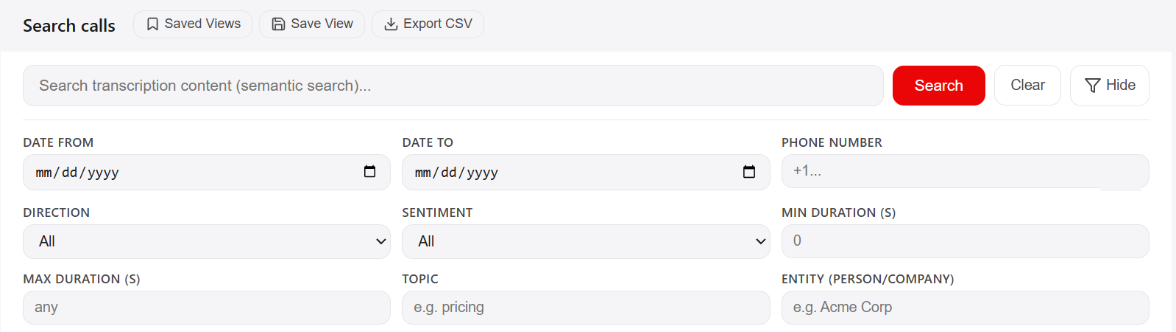
The Search tab: search your transcripts, then narrow with filters.
6. Teach the AI how you sell
Every business starts on the built-in Kixie Default Playbook, so calls are scored from day one. To make scoring match how your team sells:
- Go to Settings > Playbooks.
- Pick one way to build your Playbook:
- Answer questions (recommended). Click Start the wizard. It asks how your business sells and writes every section for you. You can start with as few as three answers, skip any question and edit the draft before it goes live.
- Upload documents. Turn a playbook or call script you already have into a Playbook.
- Start from scratch. Write each section yourself in the editor.
- Customize the default. Start from the built-in Kixie Default and make it yours.
- Review the draft and save it.
Animation: Build a Playbook (7 seconds, loops)
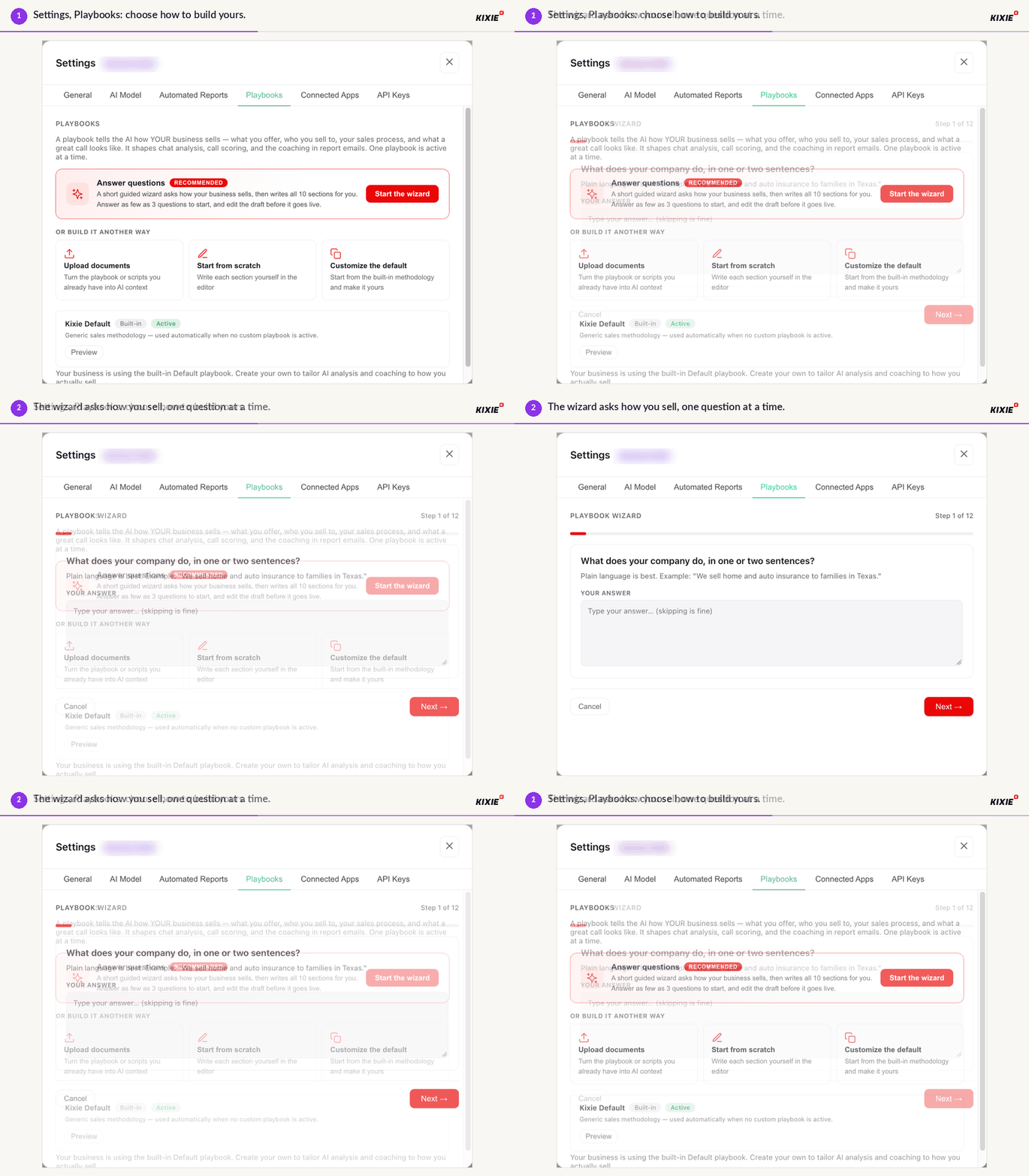
- Settings > Playbooks: choose how to build yours.
- The wizard asks how you sell, one question at a time.
Your Playbooks are listed below the build options. Click Edit to change one, or Re-run wizard to answer the wizard's questions again.
Good to know: write the Playbook around what a good call looks like on any call, such as asking questions, letting the customer talk and agreeing a next step, rather than a single script. That keeps scores fair across different kinds of calls.
7. Score each team against its own Playbook
One Playbook is active for your whole business at a time. Individual teams can have their own.
- Go to Settings > Playbooks.
- Click Activate on the Playbook you want the whole business to use. It shows an Active badge.
- To give a team its own Playbook, click Teams on that Playbook, select the teams and click Save teams.
A team can only be on one Playbook. If you select a team that's already on another Playbook, it moves when you save. To go back to the built-in Playbook, click Use default. Your own Playbook stays saved but stops being used.
Using a different Playbook in chat: pick a Playbook for a single conversation from the Playbook menu next to the chat box. This changes how that conversation reads your calls. It doesn't change how calls are scored.
8. Know how scoring works
- Reps on a team with its own Playbook are scored against that Playbook. Everyone else is scored against the active one.
- Only calls with enough conversation are analyzed. Very short calls and voicemails are marked as too short to analyze instead of being scored.
- Each call page shows which Playbook scored it.
9. Quick tips
- Build this week's coaching list in seconds: set Flags to needs coaching and Score to under 50.
- Share a win at standup: set Score to 75 and up, open a call and play its best moment.
- Find every pricing conversation by searching for "pricing," even when nobody logged it.
- Don't wait for the perfect Playbook. Start the wizard with three answers. You can edit it any time.
10. Troubleshooting
A call is missing from the Calls page. Calls appear 30 to 45 minutes after they end. Every call, including very short ones and voicemails, is also on the Call history dashboard under Reports.
A rep is scored against the wrong Playbook. Check which Playbook scored the call at the top of the call page. Then go to Settings > Playbooks, click Teams on the right Playbook and make sure the rep's team is selected.
Teams shows no teams. Your business has no teams set up yet. Create them in the Kixie dashboard at app.kixie.com first.
I only see my own calls. Team-wide calls are for admins and managers.
Notes aren't reaching my CRM. Go to Settings > Connected Apps and check that your CRM shows Analyzing and its call notes switch shows Writing notes.
Get started
Open Calls in the Kixie AI Dashboard and filter to needs coaching. Then go to Settings > Playbooks and start the wizard so every score reflects how you sell. If you want help, contact your Kixie account team or support@kixie.com.